

Using a casino account on a phone is usually straightforward, but access can fail when a registration email is missed, a password is entered incorrectly or the operator’s location rules prevent an account from being opened. This Crowngreen guide to registration and email confirmation — account access focuses on accessing Crowngreen from a mobile browser, checking what the sign-in process requires and resolving common problems without creating unnecessary duplicate accounts.
Begin with the browser, not a new account
A mobile browser is generally the simplest route when no confirmed native application is available. Open a current version of Safari, Chrome or another reputable browser, then use a private and stable connection. A responsive website may adapt to a smartphone or tablet screen, but that does not mean every feature will behave identically across devices. Keep the browser updated, avoid opening the account on a shared device and check that the address bar shows the expected website before entering personal details.
Before registering, confirm that the service currently accepts people in your location. The available material is inconsistent about New Zealand eligibility: some market-facing descriptions say New Zealand users are accepted, while a published restricted-country list includes New Zealand. The terms also place responsibility on the user to check whether online gambling is lawful where they live. Registration controls and the live terms should therefore take priority over an older review or search result.

If the page looks incomplete, try rotating the phone, closing other tabs or disabling a browser extension that interferes with forms. Do not repeatedly submit the same registration form while waiting for a response. Multiple submissions can create confusion about which email address or password was recorded. If the page remains unusable, record the message shown on screen and contact the operator through a verified support route rather than opening a second account.
What to prepare before registration
The displayed registration form asks for a name, email address, password and password confirmation. Use details that are accurate and consistent, including an email inbox that you can access on the same phone. A temporary address, spelling mistake or full inbox can prevent confirmation and later account recovery. The terms require users to be at least 18 and legally permitted to gamble in their location, so these conditions should be checked before any form is submitted.
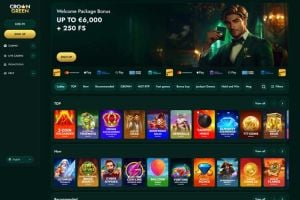
Create a unique password rather than reusing one from email, banking or social media. On a phone, a password manager can reduce typing errors, especially when the form asks for confirmation. Check whether the browser has autofilled an old address or an incorrect password. Never share the account with another person, and do not allow somebody else to register or operate it on your behalf; the stated rules restrict account sharing and multiple accounts.
After submitting the form, look for an on-screen acknowledgement before closing the tab. Then check the inbox, junk folder, promotions folder and any filtering system connected to the email account. Search for the operator’s name or terms such as “confirm”, “verification” or “login”. Do not assume that a missing message means registration failed. First check the address entered, wait a reasonable period and use the displayed resend function only when available.
When the confirmation email does not arrive
A confirmation message may be delayed by an overloaded inbox, spam filtering, a typing error or a temporary delivery problem. Refresh the inbox manually and check whether the email account is online. If you use several addresses on the phone, confirm that you are viewing the same inbox entered on the form. A confirmation link may also expire, so an older message may no longer work even though it arrived successfully.
Use only the newest confirmation message if several have been sent. Open it in the same trusted browser where possible, and inspect the destination before proceeding. Avoid entering passwords after following an unexpected message from an unrelated sender. General online-safety guidance from New Zealand’s official cyber-safety service can help with recognising suspicious links and protecting personal information.
If the link opens a blank page or returns an error, copy the visible error wording and try again after checking the connection. Switching between Wi-Fi and mobile data may identify a local connection problem, but it cannot establish whether registration is permitted. If no confirmation arrives after the available resend options have been used, contact support and provide the email address and approximate registration time, without sending a password or payment information.
Recover access without creating another account
The sign-in interface uses an email address and password. When a password is forgotten, the displayed recovery route asks for the account email address and sends a login or reset code. Enter the six-digit code carefully, taking note of whether spaces are required and whether the code has an expiry period. Copying an extra space at the beginning or end can cause an otherwise correct code to fail.
For a smoother recovery attempt, close duplicate login tabs and request one fresh code. Several requests can make earlier codes invalid or leave multiple messages competing for attention. If the reset email is not visible, repeat the inbox and spam checks used for registration confirmation. Do not share the code with anyone claiming to be support, and do not save it in a public notes app or message thread.
If recovery does not work, the account may require additional verification or a support contact. Provide only the information requested through the official channel, and keep a record of the case reference if one is supplied. Creating a second account to bypass a locked login is a poor solution because the terms prohibit multiple accounts. It may also make identity and ownership checks more difficult later.
Make mobile access safer and more reliable
Before signing in on a phone, use a screen lock and avoid public or shared devices. Do not let the browser save login details on a handset that other people can unlock. Log out after using a borrowed device, especially if the browser has offered to remember the session. Keeping the operating system and browser updated reduces exposure to known security weaknesses, although it does not resolve questions about market eligibility or account terms.
Take care with links received by text message, social media or unsolicited email. A familiar logo is not proof that a message is genuine. Type the known web address into the browser or use a saved bookmark created from a verified page. Never provide a password, recovery code or identity document through an unverified contact. If a page asks for unusual information during a basic login, stop and check the address before continuing.
Mobile convenience should not encourage rushed decisions. The available information describes browser-based access and mentions a possible installable progressive web experience, but it does not independently confirm a native iOS or Android application. A browser shortcut is not the same as an official app. Before using account, payment or verification functions, review the current terms, the account screen and any location restrictions. If the information conflicts, pause and seek clarification rather than relying on an old listing.
Frequently asked questions about mobile account access
Can I register from a phone?
The displayed form is designed to collect a name, email address, password and password confirmation, so registration may be possible through a mobile browser. However, New Zealand eligibility is not consistent across the available material. Check the live registration controls and current terms before submitting details, and do not assume that a mobile-friendly page confirms permission to register.
What should I do if the confirmation email is missing?
Check the entered address, junk and filtered folders, then refresh the inbox and use any available resend option once. Look for the newest message because older links may expire. If nothing arrives, contact support through a verified channel. Never send your password or a recovery code while asking for assistance.
Can I open a second account if mobile recovery fails?
No. The stated terms restrict users to one account, so a second registration should not be used to bypass a forgotten password, missing email or locked access. Try the recovery code process first. If it fails, contact support and be ready to complete account or identity checks through the approved process.